
Snapchat Catalog Feed
Snapchat catalogue feeds for Dynamic Product Ads
Made by Orbit Commerce, built, supported and billed by Orbit
Opens your Orbit dashboard to confirm.
No card needed for the trial. If you do not subscribe when it ends, you are not charged and it goes back to the free plan.
No Orbit store yet? Start for free
- Free trial
- 14 days
- on paid plans
- After install
- Snapchat Catalog Feed
- in your dashboard menu
- Listed
- May 2026
- version 1.0.0
About
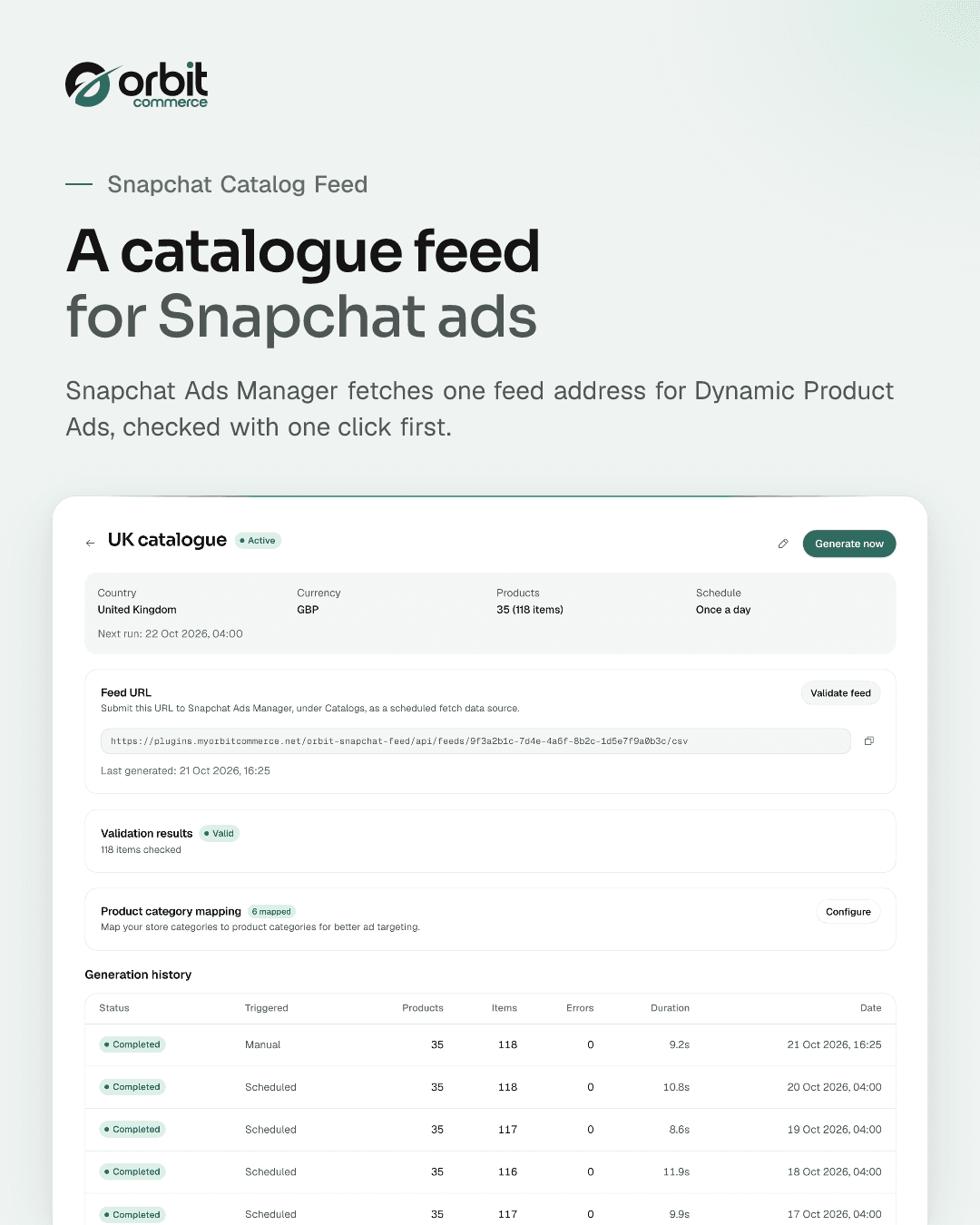
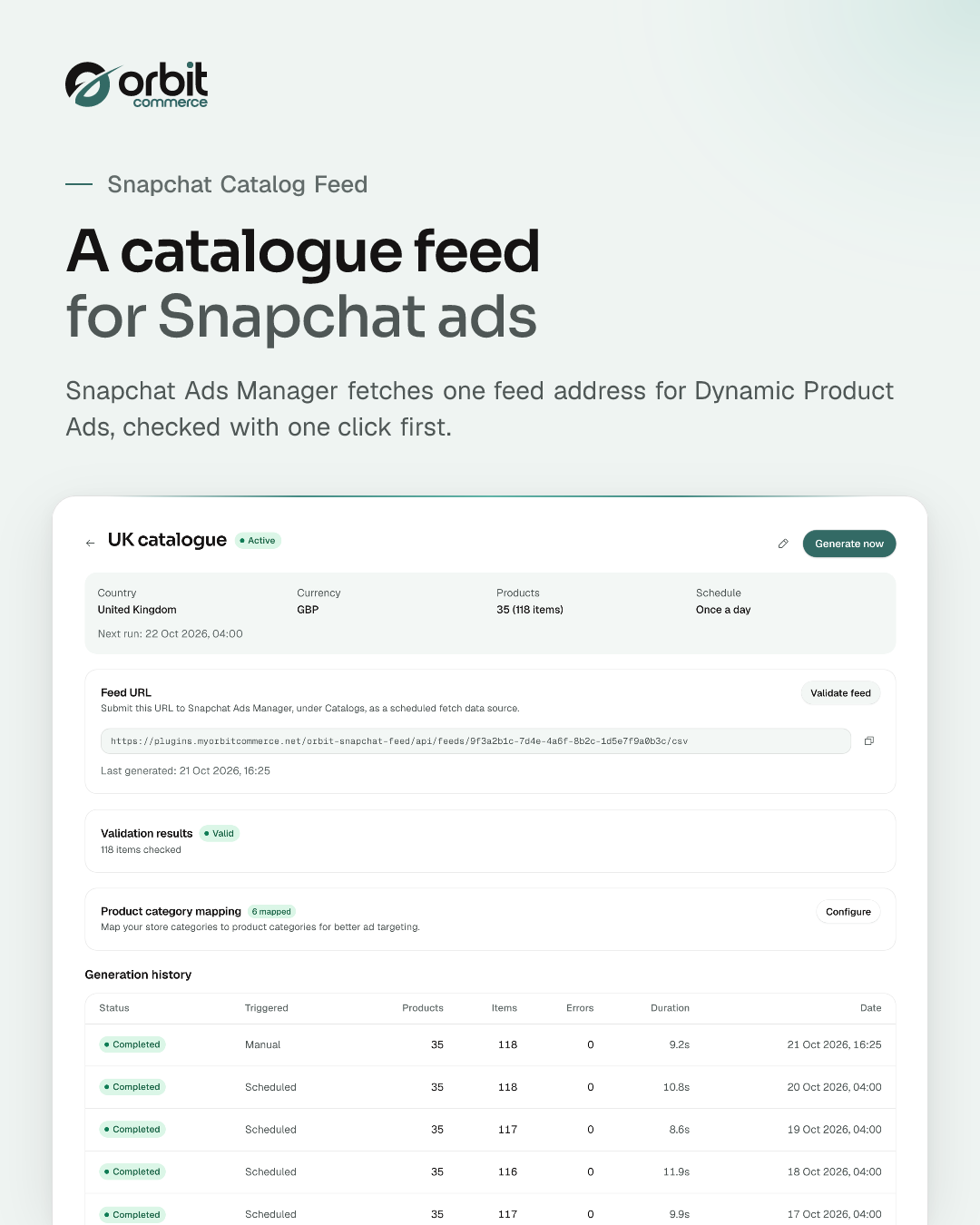
Generate Snapchat-compatible product feeds (CSV) for Dynamic Product Ads, published at a stable feed URL that Snapchat fetches on its own schedule.
What you get
- Snapchat catalogue CSV feed for Dynamic Product Ads
- Stable feed URL for Snapchat to fetch
- Scheduled feed generation
Getting started
From the Snapchat Catalog Feed docs.
- Install the plugin. From the Orbit Commerce plugin store, install Snapchat Catalog Feed and approve the requested permissions. A Snapchat Catalog Feed entry appears in your dashboard menu.
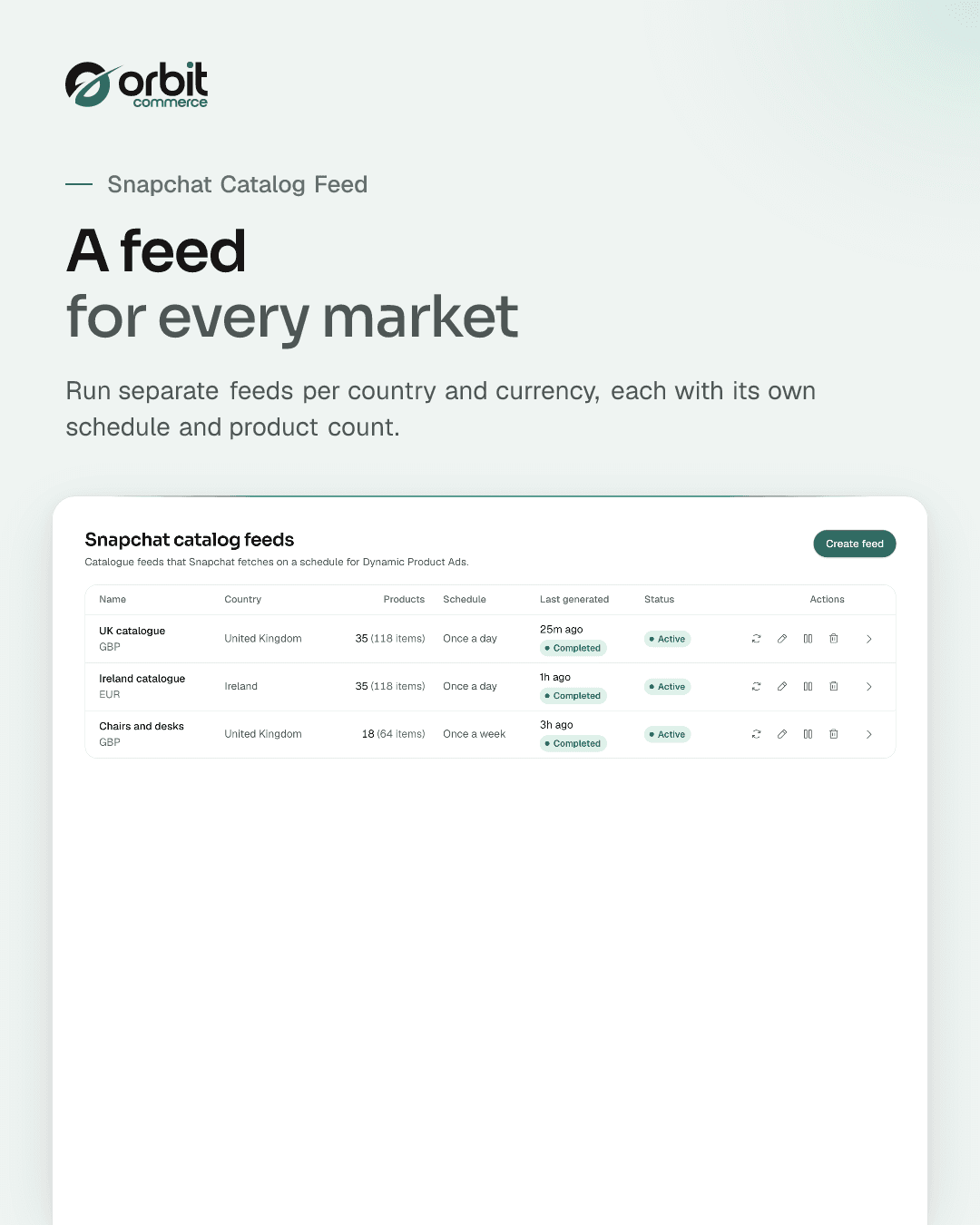
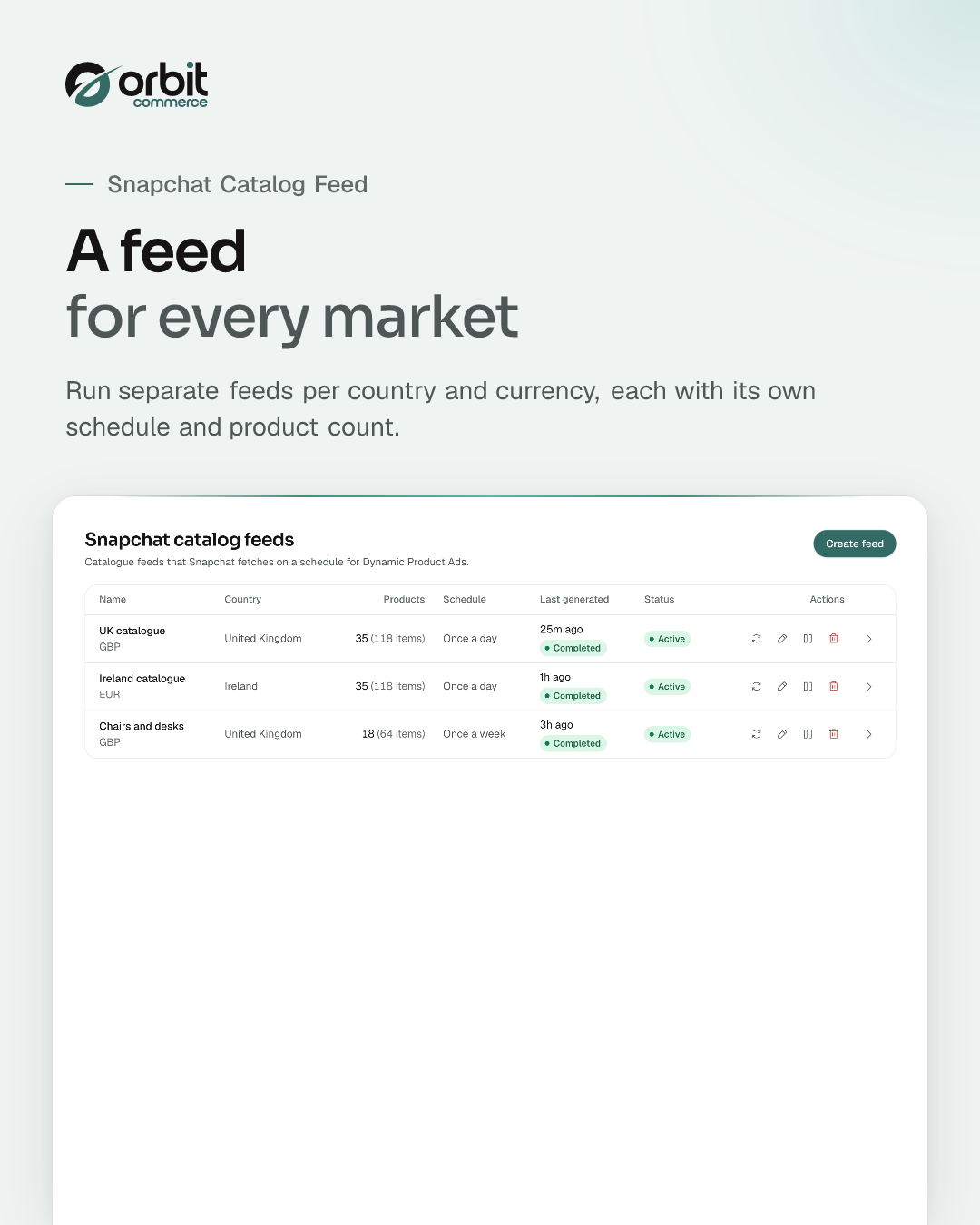
- Create a feed. Open the plugin and select Create Feed. Give it a name (for example "Summer Collection Feed").
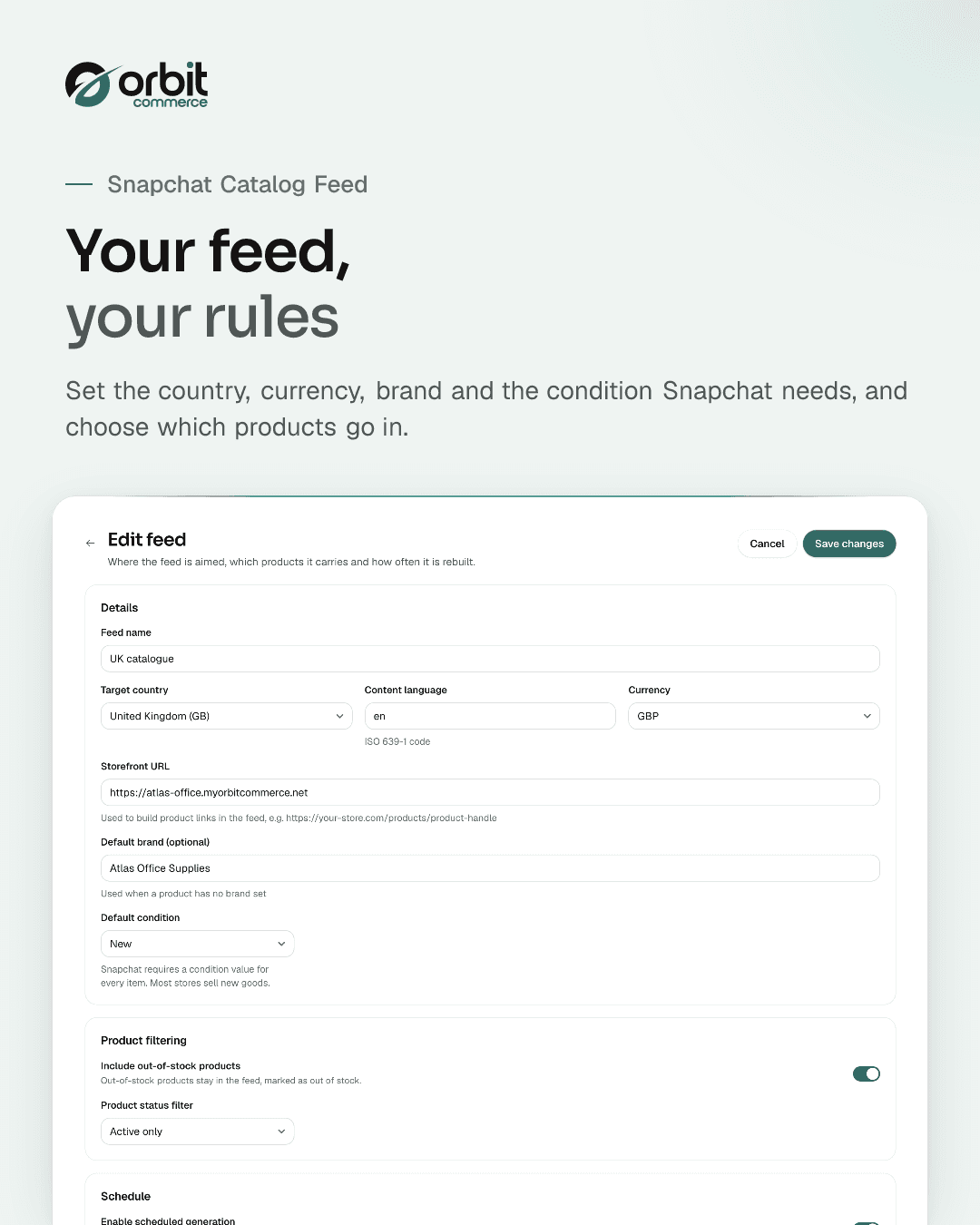
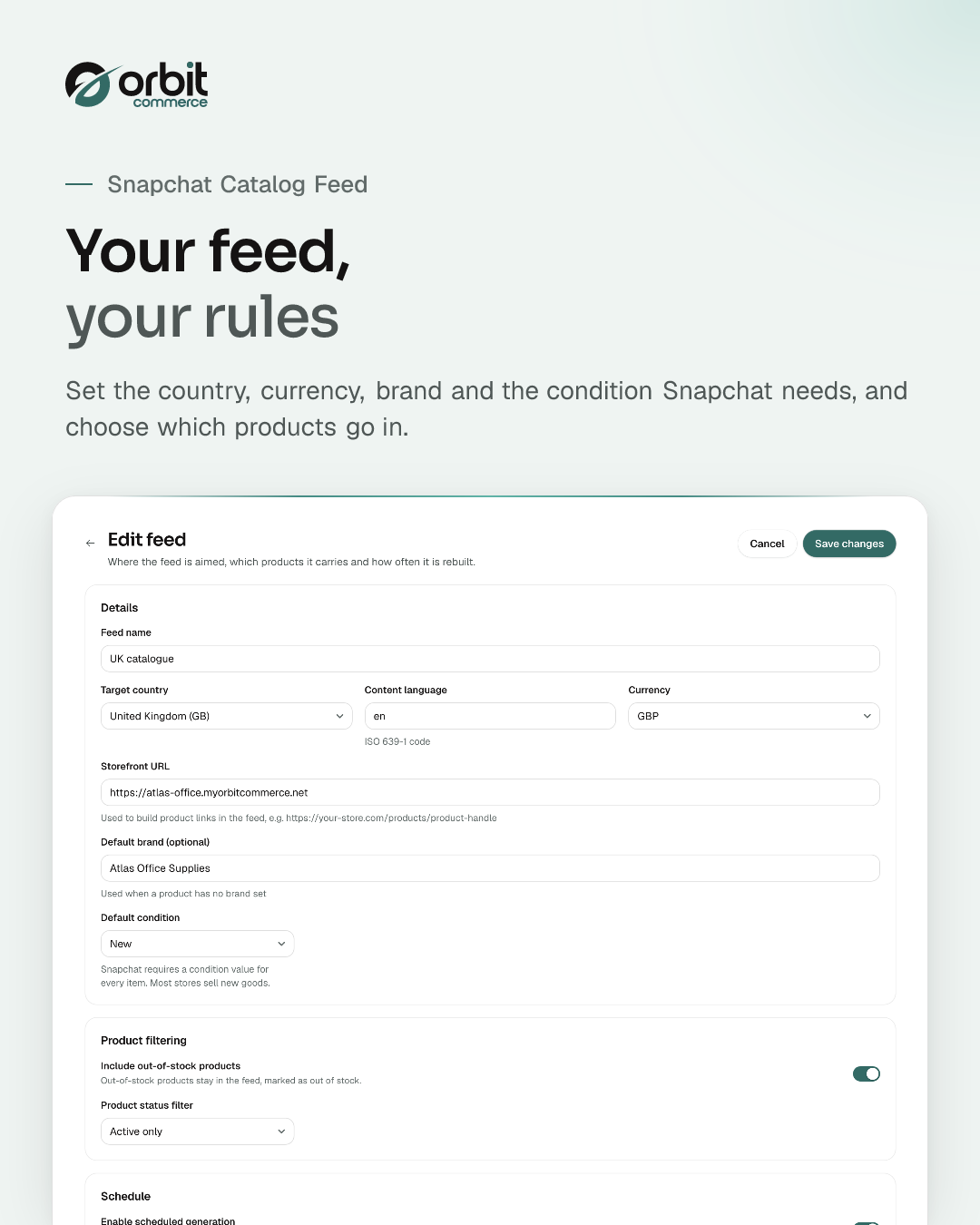
- Set the basics. Choose your target country, confirm the content language and currency, and enter your storefront URL.
- Set defaults and filtering. Optionally set a default brand and the default condition (most stores sell new goods). Decide whether to include out-of-stock items and whether to publish active products only.
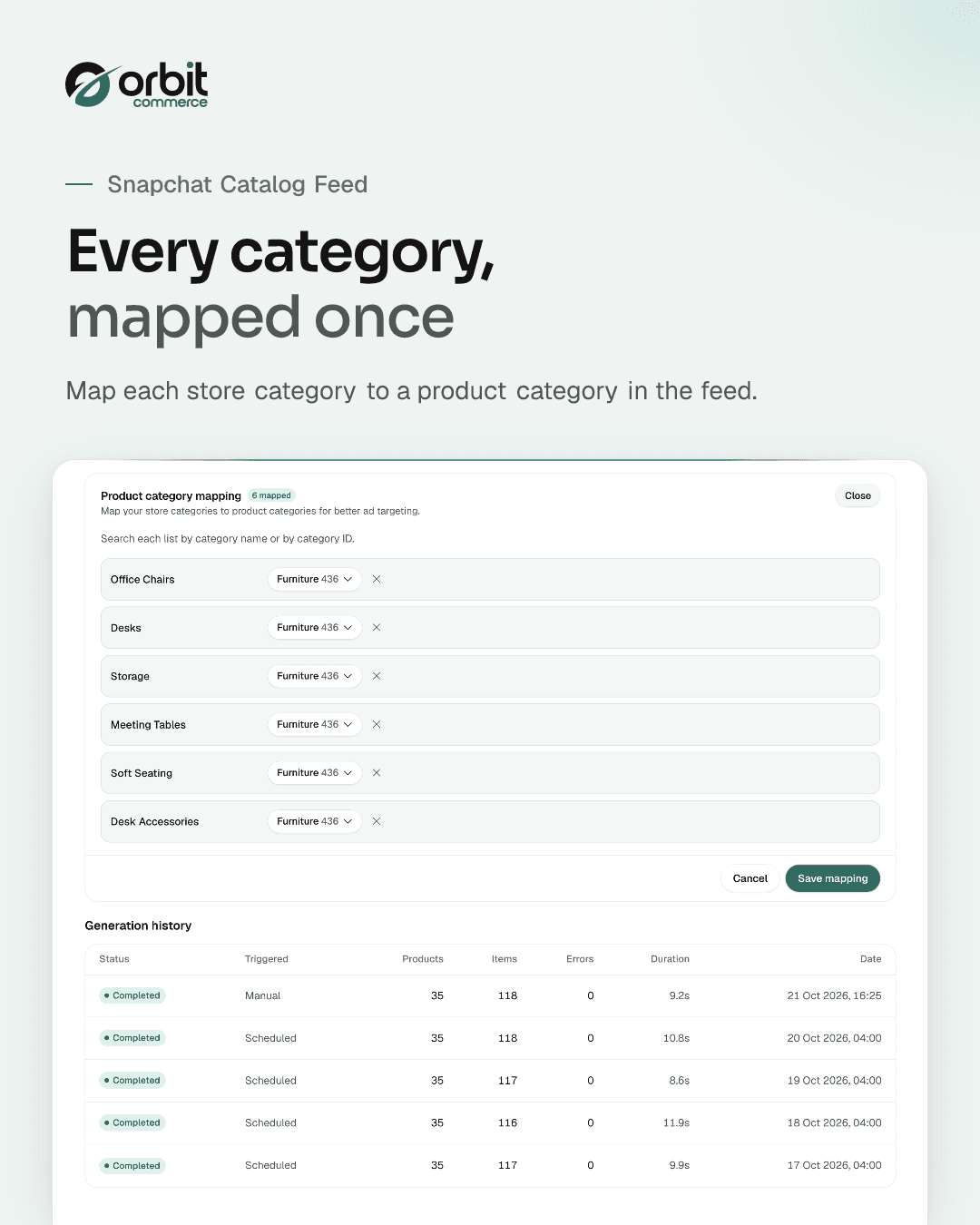
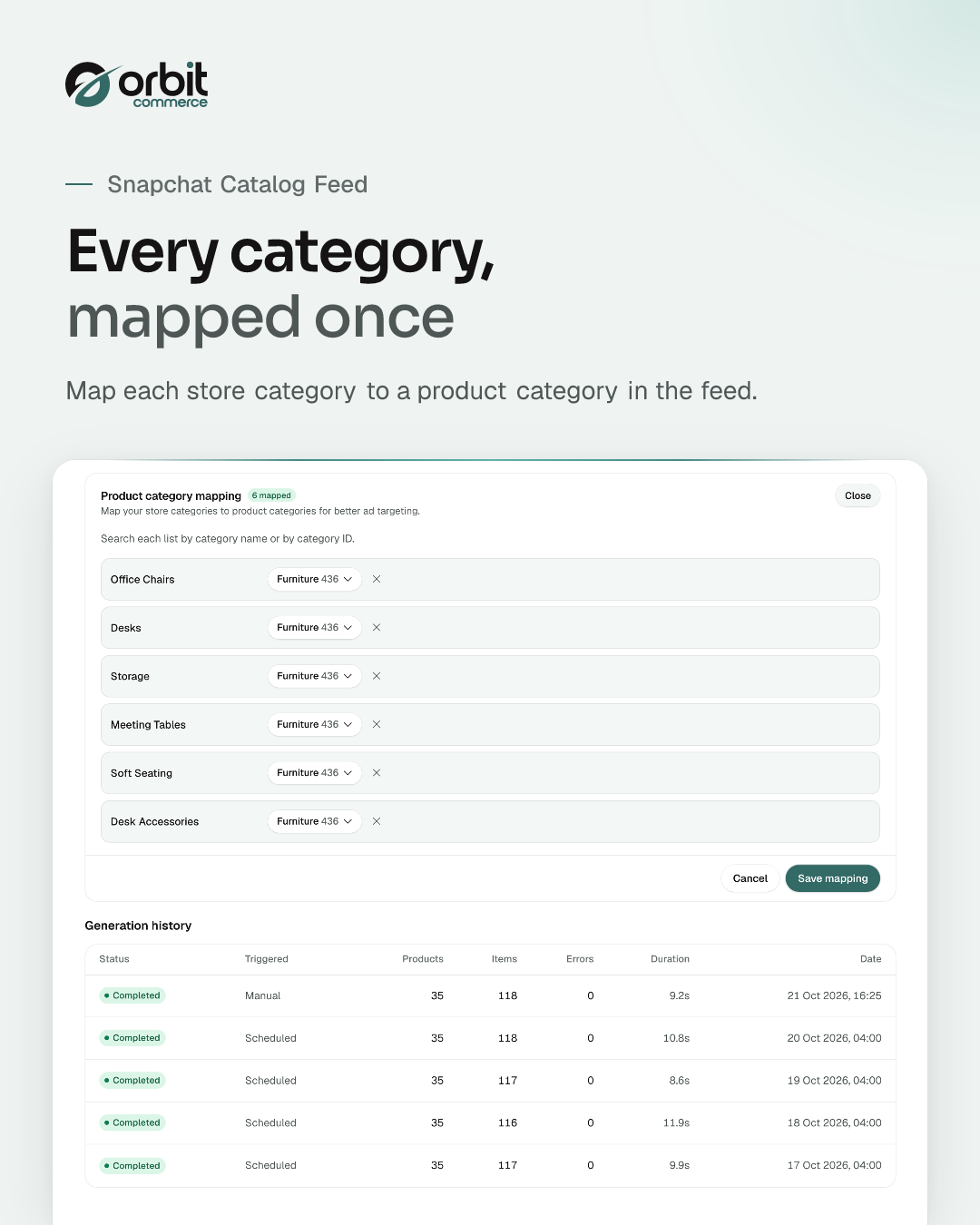
- Map your categories (recommended). Open the feed and select Configure under Product Category Mapping to match your store categories to Google product categories.
What it can see and change
When you install Snapchat Catalog Feed, it asks to:
Read only
- See the products in your catalogue, with prices and stock
- See everything stored about one product and its variants
- See the classification tree you file products under
- See one entry in your product classification tree
- See the tracking scripts installed on your storefront
- See one order in full, including the buyer and delivery address
- See which other systems your store is set up to send events to
- See whether those systems are receiving what you send them, and what went wrong when they did not
Can make changes
- Add or change tracking scripts on your storefront
- Start sending your store events, including orders with customer names and addresses, to another system on the internet
- Stop sending events to another system; this cannot be undone and the connection has to be set up again from scratch
Uninstalling removes its access.
Questions
More in Marketing and SEO
Product Reviews
Add customer reviews and ratings to boost trust and sales
Form Builder
Drag-and-drop forms: contact, surveys, registrations, file uploads and more
Calculator Builder
Build interactive calculators that give visitors instant answers
Pinterest Catalog Feed
List products on Pinterest with catalogue data-source feeds
Microsoft Merchant Feed
List products on Bing Shopping with Microsoft Merchant feeds
Facebook Catalog Feed
List your products on Facebook & Instagram with automated CSV feeds
Google Shopping Feed
List your products on Google Shopping with automated XML feeds







Open your shop. Add Snapchat Catalog Feed.
Every plan starts with a two-week trial, and plugins install on any plan, so Snapchat Catalog Feed can be there from day one.